
The command-line interface (CLI) is a a type of user interface that allows users to interact with a computer programme or an operating system by entering text commands at a command line. The command line is a window or screen where the user types commands and receives responses from the programme or the system. Commands are instructions that specify what action is to be carried out and on which data or elements. For example, the ls command in Linux displays the contents of a directory, and the copy command in Windows copies a file from one location to another.
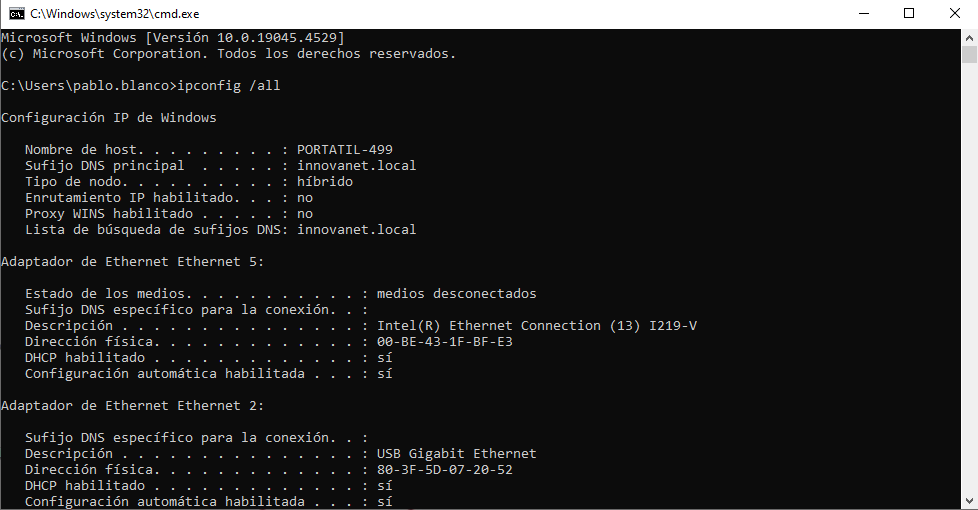
What is a command-line interface used for?
The CLI can be used for a variety of purposes, such as:
- To monitor and manage an operating system, a server, a network or a database.
- Run programmes, applications or scripts.
- Create, edit or delete files, directories, users, permissions, etc.
- Perform mathematical, logical or text-based operations.
- Search for, filter or process information.
- Automate repetitive or complex tasks.
How does the CLI work?
The CLI works as follows:
- The user types a command into the command line and presses the Enter or Return key to send it.
- The programme or system receives the command and interprets it; in other words, it analyses and validates it.
- If the command is valid, the programme or system carries out the corresponding action and displays the result or a confirmation message on the command line.
- If the command is invalid, the programme or system displays an error or help message on the command line.
- The user can enter another command or exit the command line.
Differences between CLI, GUI and NUI
The Command-Line Interface (CLI), the Graphical User Interface (GUI) and the Natural User Interface (NUI) represent different forms of interaction between users and computer systems, each with its own characteristics and approaches.
Find out what CLI is; the oldest of the three, it is based on text commands that users must type to interact with the system. This interface requires users to be familiar with specific commands and their syntax.
Furthermore, the GUI introduced a more visual and intuitive way of interacting with the system. Instead of text commands, It uses graphical elements such as windows, icons, menus and pointers. This interface made computing more accessible to the general public, as it allows users to interact with the system in a more intuitive and visually appealing way.
NUI, the most recent of the three, aims to make interaction even more natural and closer to the way humans interact with the physical world. This interface uses gestures, voice, body movements and, in some cases, virtual reality or enhanced to allow for more direct and natural interaction with computer systems.
Advantages and disadvantages of the CLI
The CLI has a number of advantages and disadvantages compared with other types of user interface, such as the graphical user interface (GUI) or the natural user interface (NUI). Some of these are:
Advantages
- The CLI is faster, more efficient and more accurate than the GUI or the NUI, as it requires fewer system resources and allows complex actions to be carried out using just a few characters.
- The CLI is more flexible and customisable than the GUI or the NUI, as it allows commands to be combined, chained or modified according to the user’s needs.
- The CLI is more powerful and versatile than the GUI or the NUI because it offers more functions, options and possibilities than can be displayed on a screen or conveyed by a gesture.
Disadvantages
- The CLI is more difficult to learn and use than the GUI or the NUI. It requires you to memorise and type commands, parameters, symbols and syntactic rules correctly.
- The CLI is more prone to errors and risks than the GUI or the NUI. In fact, a command that is typed or executed incorrectly can have serious or irreversible consequences for the system or the data.
- The CLI is less intuitive and appealing than the GUI or the NUI, as it is text-based rather than relying on images, icons, colours or animations.
How do I open the CLI in Windows?
There are several ways to open the CLI in Windows; here are some of the most common ones:
1. Keyboard shortcuts:
- Windows key + R: Press these keys simultaneously to open the «Run» dialogue box. Type «cmd» and press Enter to open the Command Prompt window, the default CLI interface in Windows. For those who don’t know, CMD stands for «Command Prompt».
- Windows key + X: Open the context menu. Select «Command Prompt» or «Windows’ PowerShell» to open the relevant CLI interface.
2. Start menu:
- Search for «Command Prompt» or «Windows PowerShell» in the Start menu search bar. Click on the relevant icon to open the CLI interface.
3. File Explorer:
- Open File Explorer and navigate to the following location:
C:WindowsSystem32. - Double-click the «cmd.exe» file to open the Command Prompt window.
4. Global search:
- If you’re using Windows 10 or later, you can use the global search function. Press the Windows key + S and type «cmd» or «PowerShell». Click on the relevant result to open the CLI interface.
Opening the CLI in Windows:
There are several ways to open the CLI in Windows; here are some of the most common ones:
1. Keyboard shortcuts:
- Windows key + R: Press these keys simultaneously to open the «Run» dialogue box. Type «cmd» and press Enter to open the Command Prompt window, the default CLI interface in Windows.
- Windows key + X: Open a context menu. Select «Command Prompt» or «Windows PowerShell» to open the relevant CLI interface.
2. Start menu:
- Search for «Command Prompt» or «Windows PowerShell» in the Start menu search bar. Click on the relevant icon to open the CLI interface.
3. File Explorer:
- Open File Explorer and navigate to the following location:
C:WindowsSystem32. - Double-click the «cmd.exe» file to open the Command Prompt window.
4. Global search:
- If you’re using Windows 10 or later, you can use the global search function. Press the Windows key + S and type «cmd» or «PowerShell». Click on the relevant result to open the CLI interface.
Opening the CLI in Linux:
In Linux distributions, there are various ways to open the CLI, but some of the most common are:
1. Keyboard shortcuts:
- Ctrl + Alt + T: This is the most common key combination for opening a new terminal window in most Linux distributions.
- Super key + Terminal key: In some desktop environments, pressing the Super key (usually the Windows key) together with a specific key (such as F10 or Terminal) opens the terminal window. Check the documentation for your desktop environment to find out the exact key combination.
2. Applications menu:
- Most Linux distributions have an applications menu where you can find the option to open a terminal window. The exact location of the menu may vary depending on the desktop environment you are using.
3. App launcher:
- Many Linux distributions have an application launcher that allows you to search for and run applications. Type «terminal» or «konsole» into the launcher and click on the relevant icon to open the terminal window.
Most common CLI commands
There are many commands you can use in a command-line interface to carry out a range of different tasks. Here is a list of the most common commands for the CLI on Windows and Linux:
- Windows: dir | Linux: ls (List files and directories)
- Windows: cd | Linux: cd (Change directory)
- Windows: copy | Linux: cp (Copy files)
- Windows: move | Linux: mv (Move or rename files)
- Windows: del | Linux: rm (Delete files)
- Windows: md | Linux: mkdir (Create a directory)
- Windows: rd | Linux: rmdir (Delete a directory)
- Windows: type | Linux: cat (Display the contents of a file)
- Windows: echo | Linux: echo (Display text on screen)
- Windows: cls | Linux: clear (Clear the screen)
- Windows: ipconfig | Linux: ifconfig (Show network configuration)
- Windows: ping | Linux: ping (Test network connectivity)
- Windows: tasklist | Linux: ps (List running processes)
- Windows: taskkill | Linux: kill (End a process)
- Windows: shutdown | Linux: shutdown (Shut down the system)
Tips for using the CLI
Here are some useful tips for using the CLI (Command Line Interface) more efficiently:
- Use the Tab key for autocomplete: In most CLIs, you can use the Tab key to autocomplete commands and file names.
- Use the up and down arrows: These allow you to navigate through the history of commands you have used previously.
- Learn about wildcards: The * and ? characters can help you work with multiple files at once.
- Use the «man» command (on Linux) or «help» (on Windows): These commands provide detailed information on how to use other commands.
- Learn the keyboard shortcuts: For example, Ctrl+C to interrupt a command that is running, or Ctrl+L to clear the screen.
- Use pipes (|) and redirection (> and <): These allow you to combine commands and redirect input/output.
- Create aliases for frequently used commands: This will save you time when typing long or complex commands.
- Use quotation marks to handle spaces in file names: This will prevent errors when working with names that contain spaces.




 Español
  English (UK)